Land Claims
Your land on HyperBlocks is yours: mark it, shape it, and decide who can build, open chests, or just peek inside. The server’s claiming tools are built for survival builders, shops, teams, and rentals — with trust levels many generic survival setups don’t offer out of the box.
At a Glance
- Protection — Only you and people you trust can interact with your claim the way you allow.
- Tools — Golden shovel for claims and resize; copper shovel for subclaims; stick to inspect and open menus.
- Trust — Five levels from “open doors” to full management — including view-only chests (see below).
- Extras — Withdraw blocks as items, transfer land, list on the marketplace, rent subclaims, per-claim PvP and more.
Claims on the Website
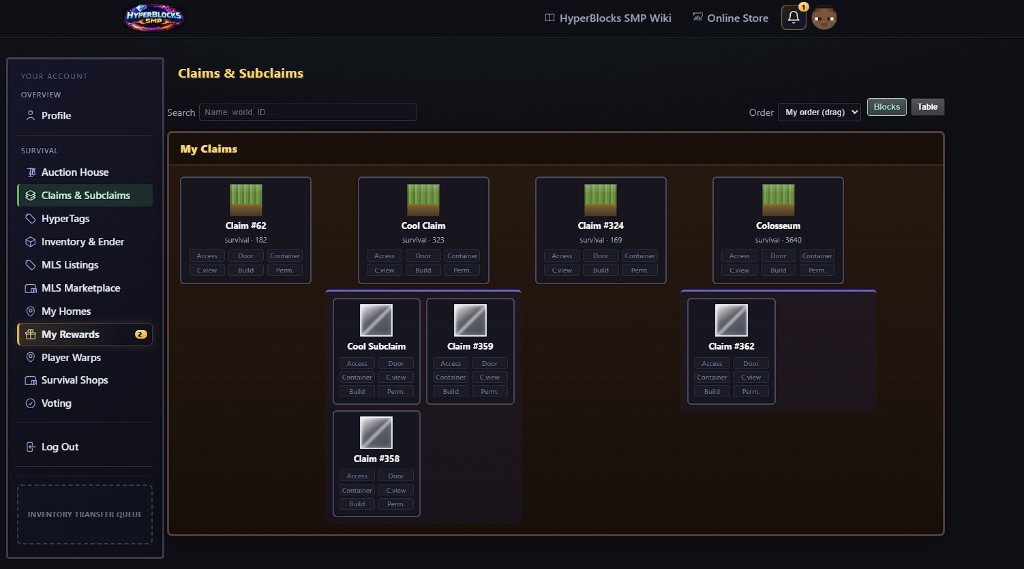
With a linked character you can open Claims & Subclaims in your account to review and work with claims from a browser. Details stay in sync with Survival; see Website Integration for how that behaves.
How many claims can I own?
Your rank sets how many main land claims you can hold at once (separate from claim blocks, which control how large each claim can grow). Member, VIP, and VIP+ limits are in the rank comparison table. If you already own more claims than your rank allows, existing claims are not removed—you just cannot create a new one until you are under your limit.
Opening the Menu
Run /claimprotect or /clp with no arguments to open the main menu (same as the Hyper Menu shortcut). Optional /claimprotect gui does the same. Use /claimprotect help for every chat command.
Basic claiming and the starter kit are available to everyone. Extra claim blocks and more main claims may come from ranks or the Store; see the rank comparison table.
Commands
To open the main land claim menu, use /claimprotect or /clp with no arguments. Use /claimprotect help for the command list in-game.
| Command | Description |
|---|---|
/claimprotect or /clp | No arguments: opens the main menu (with permission claimprotect.gui); otherwise shows help |
/claimprotect help | List commands and help |
/claimprotect gui | Optional; same as no arguments—opens the main menu |
/claimprotect myclaims | My Claims / My Rentals (teleport) |
/claimprotect claim [radius] | Create claim |
/claimprotect abandonclaim | Abandon current claim |
/claimprotect abandontoplevelclaim | Abandon top-level claim |
/claimprotect abandonallclaims confirm | Abandon all your claims |
/claimprotect extendclaim <blocks> | Extend claim by block count |
/claimprotect trust <player> | Grant build trust |
/claimprotect untrust <player> | Remove trust |
/claimprotect containertrust <player> | Grant full container trust |
/claimprotect containerviewtrust <player> | Grant container view (look in chests only; no take/put) |
/claimprotect accesstrust <player> | Grant access (doors, redstone) |
/claimprotect doortrust <player> | Grant door trust (wooden doors and trapdoors) |
/claimprotect punchtrust <player> | Grant punch-only trust (shows mining animation without allowing block break) |
/claimprotect permissiontrust <player> | Grant manage / permission trust |
/claimprotect trustlist | List trusted players |
/claimprotect transfer claim <player> | Transfer claim to another player |
/claimprotect transfer claimblocks <player> <amount> | Give claim blocks |
/claimprotect rentsubclaim <player> <currency> <weekly> <weeks> | While standing in your subclaim, send a rental offer to an online player |
/claimprotect cancelrental | While standing in a rented subclaim, end the active lease (landlord or tenant) |
/claimprotect subdivideclaims / /claimprotect basicclaims | Shovel mode: subclaims vs new claims |
/claimprotect restrictsubclaim | Toggle subclaim restriction |
/claimprotect deleteclaim | Delete current claim |
/claimprotect claimexplosions | Toggle explosions in claim |
/claimprotect claimslist [player] | List claims |
/claims [player] | Same as the claims list command above (shortcut). |
/claimprotect trapped | Request rescue if stuck |
/claimprotect unlockdrops | Unlock death drops in claim |
/claimprotect withdraw <amount> | Withdraw claim blocks as item |
/claimprotect claimmod rename [name] | Rename claim (if enabled) |
/claimprotect playerwarp <name> | Link a player warp to the claim or subclaim you are standing in (permission required). Renters are blocked if the owner disabled Player Warps for renters on the main claim. |
/claimprotect bordermessage entry|exit <message> | Set entry or exit border line for the claim (use clear as the message to remove). Same as editing from My Claims → Borders or after clicking the sign in the GUI. |
Tools
| Item | Use |
|---|---|
| Golden shovel | Create and resize claims; two right-clicks for corners. Subdivide mode: subclaims. |
| Copper shovel | Create subclaims only; two right-clicks inside your claim. |
| Stick | Inspect claims; shift + right-click in your claim or rental to open My Claims. |
Menu (GUI)
Open the main menu with /claimprotect or /clp (no arguments), or from the server menu. One middle row has: Withdraw, Transfer, My Claims / My Rentals, MLS Marketplace, Starter Kit, and decorative glass. Close is at the bottom-right corner.
- Withdraw – Claim blocks as item.
- Transfer – Transfer claim blocks to a player.
- My Claims / My Rentals – List claims, subclaims, rentals; teleport, trust, rent, abandon.
- MLS Marketplace – Browse and list claims for sale.
- Starter Kit – Golden shovel, copper shovel, stick (24h cooldown).
- Close – Close menu (bottom-right).
Claim / subclaim Settings (from My Claims): PvP and keep inventory on death share one slot—click toggles PvP; when PvP is on, shift+click toggles keep inventory vs drops. Walking into a claim with PvP on shows one line in chat (PvP on · Keep inventory on death or PvP on · Drops on death); changing keep inventory notifies everyone inside with that same line again. Landlords on the top-level claim get a separate PvP row for whether rented subclaims may enable PvP (iron sword = allowed; barrier = blocked) and Player Warps for whether subclaims may set player warps (when off, warps on subclaims are blocked for everyone until the owner turns it back on). The same options can be changed from your website account when claim settings are available there, after a Survival sync.
Rescue when stuck: use /claimprotect trapped in chat (not in the menu).
Claim Expiration
Claims do not vanish just because they are old. Expiration is driven by owner inactivity (how long the claim owner has been away from the server), not by the age of the claim itself. Numbers below match the current Survival claim system config; if staff change tiers or exemptions, this page should be updated.
Starter / tiny chest claims: A single small claim that only protects a chest (for example your first chest in the wild) can expire after about 7 days of the owner being inactive, so unused starter spots do not stay reserved forever.
Regular claims (tier by total blocks): For your other claims, how long you can be away before expiration may apply depends on your total claim blocks (accrued + bonus + HyperBlocks + any group blocks). The server walks the tiers from smallest cap to largest and uses the first tier where your total is still within that tier’s cap:
| Total claim blocks (cap) | Days of owner inactivity |
|---|---|
| Up to 5,000 | 30 |
| Up to 10,000 | 45 |
| Above 10,000 | 60 |
Example: 4,000 total blocks uses the first row (30 days). 8,500 total blocks uses the middle row (45 days). 25,000 total blocks uses the last row (60 days). There is no separate “never expire” tier for large claims—bigger pools get more days, not a full exemption.
Rentals: If a parent claim expires while a subclaim is rented, that subclaim can become a full claim and the renter becomes the owner — see Subclaims & Rental.
Warps: If a claim is removed (including from inactivity), player warps linked to that claim are removed as well.
Use a stick to inspect claims; claim info can help you see boundaries and related details.
Trust & Permissions
From My Claims → choose a claim → Trust & Permissions. The trust hub is a single row of buttons (no empty rows below): build, containers, container view, access, permission, trust list, transfer, close, and back.
Each button opens a small menu: type a player name in chat, turn trust on for everyone, or clear individual players. On the hub row you can also Shift+left-click to toggle everyone for that trust level.
The Five Trust Levels
| Trust | What it does |
|---|---|
| Build | Place and break blocks. Includes using doors and basic access. |
| Container | Full chest use: take, put items, farms. Includes view + access. |
| Container view | Open chests to look inside only — no taking or placing items. Useful for shops, tours, or audits. |
| Access | Doors, gates, buttons, levers, pressure plates — without building or looting. |
| Permission (manage) | Change trust, resize the claim, let others delegate trust. |
Everyone vs Named Players
You can grant each level to specific players or to everyone (public trust for that level). If you turn everyone on and later turn it off, the menu can remember previous names so you can restore them — watch the on-screen text for counts.
Container View vs Full Container
If full container trust is on for everyone, container view for everyone is not needed (full access already lets people open chests). The menu shows a clear disabled state and still explains what view-only would do. Turn off full container for everyone first if you need view-only for the whole public.
Tips
- In-game, gold text on each row summarizes what that trust does.
- Staff with menu layout permission may right-click to reorder icons in some menus.
- Chat:
/claimprotect containerviewtrust <player>grants view-only trust; see Commands for the full set.
Subclaims & Rental
Use the copper shovel in your claim (two corners) or golden shovel in subdivision mode. From My Claims, open a subclaim to set trust, rent out, or abandon. If the parent claim expires while a subclaim is rented, the subclaim becomes a full claim and the renter becomes owner.
If the landlord blocks it in the top-level claim Settings, renters cannot enable PvP in their rented subclaim—they see a short message to contact the claim owner. If Player Warps is off on the top-level claim, no one can set player warps on subclaims under that claim (including the owner) until it is turned back on.
Claim Names
Renaming is checked against a banned-words list. Disallowed names show: "That claim name is not allowed."